SSO ID Rajasthan
The SSO ID Rajasthan is a centralized digital identity portal developed by the Government of Rajasthan. Operating on the principle of "One Person, One Identity," it allows citizens, industries, and government employees to access over 100 state government departments using a single username and password.
Whether you are a student applying for competitive exams via the Recruitment Portal, a citizen paying utility bills on E-Mitra, or seeking healthcare benefits under the Chiranjeevi Yojana, your SSO ID is the mandatory gateway. By integrating with Jan Aadhaar, the portal ensures secure, transparent, and paperless service delivery across the state.
SSO Quick Links Dashboard
SSO Applicant Utilities & Tools
Photo/Sign Compressor
Resize images to meet exact Recruitment Portal KB limits.
Recruitment Age Calculator
Calculate exact age for RPSC/RSMSSB exam forms.
OTR Marks Calculator
Get exact 2-decimal percentages for OTR education details.
Essential Info for SSO ID Users
SSO vs. E-Mitra: What's the Difference?
A common point of confusion is differentiating between SSO and E-Mitra. SSO (Single Sign-On) is the master key—the digital identity portal where you create your account.
E-Mitra is one of the many applications *inside* the SSO portal. While physical E-Mitra kiosks exist across the state to help citizens who cannot use computers, anyone with a personal SSO ID can access the online E-Mitra portal from home to pay electricity bills, water bills, or apply for basic certificates without paying kiosk commission charges.
The Important Role of Jan Aadhaar
If you are a resident of Rajasthan, linking your SSO ID with your Jan Aadhaar card is highly recommended, and often mandatory for claiming state benefits.
Jan Aadhaar acts as a unified family database. When you log into SSO to apply for a scholarship (SJE) or a pension, the system automatically fetches your caste, income, and bank details from your Jan Aadhaar profile. Keeping your Jan Aadhaar updated via your SSO dashboard ensures seamless application processes.
RajKaj for Government Employees
State government employees do not register as "Citizens." They must register under the "Govt. Employee" tab using their SIPF Number.
This specialized SSO ID grants access to the RajKaj application, which is the enterprise resource planning software for the state. Here, employees manage their leave applications, Annual Performance Appraisal Reports (APAR), property returns, NOCs, and view their salary slips via the Paymanager integration.
Key Portal Details
| Feature | Details |
|---|---|
| Portal Name | Rajasthan Single Sign On (SSO) |
| Launched By | Department of IT & Communication (DoIT&C), Govt of Rajasthan |
| Primary Goal | Provide a single digital identity for all state digital services |
| Categories of Registration | Citizen (Jan Aadhaar/Google), Udyog (BRN), Govt. Employee (SIPF) |
| Official Website | sso.rajasthan.gov.in |
| Major Linked Portals | Recruitment Portal, E-Mitra, RajKaj, SJE, RGHS |
| Helpdesk Email | helpdesk.sso@rajasthan.gov.in |
How to Register for a New SSO ID
Follow this step-by-step guide to create your RajSSO account.
Step 1: Visit the Portal
Navigate to the official website: sso.rajasthan.gov.in.
Step 2: Choose Registration
Click on the "Registration" tab on the main login screen.
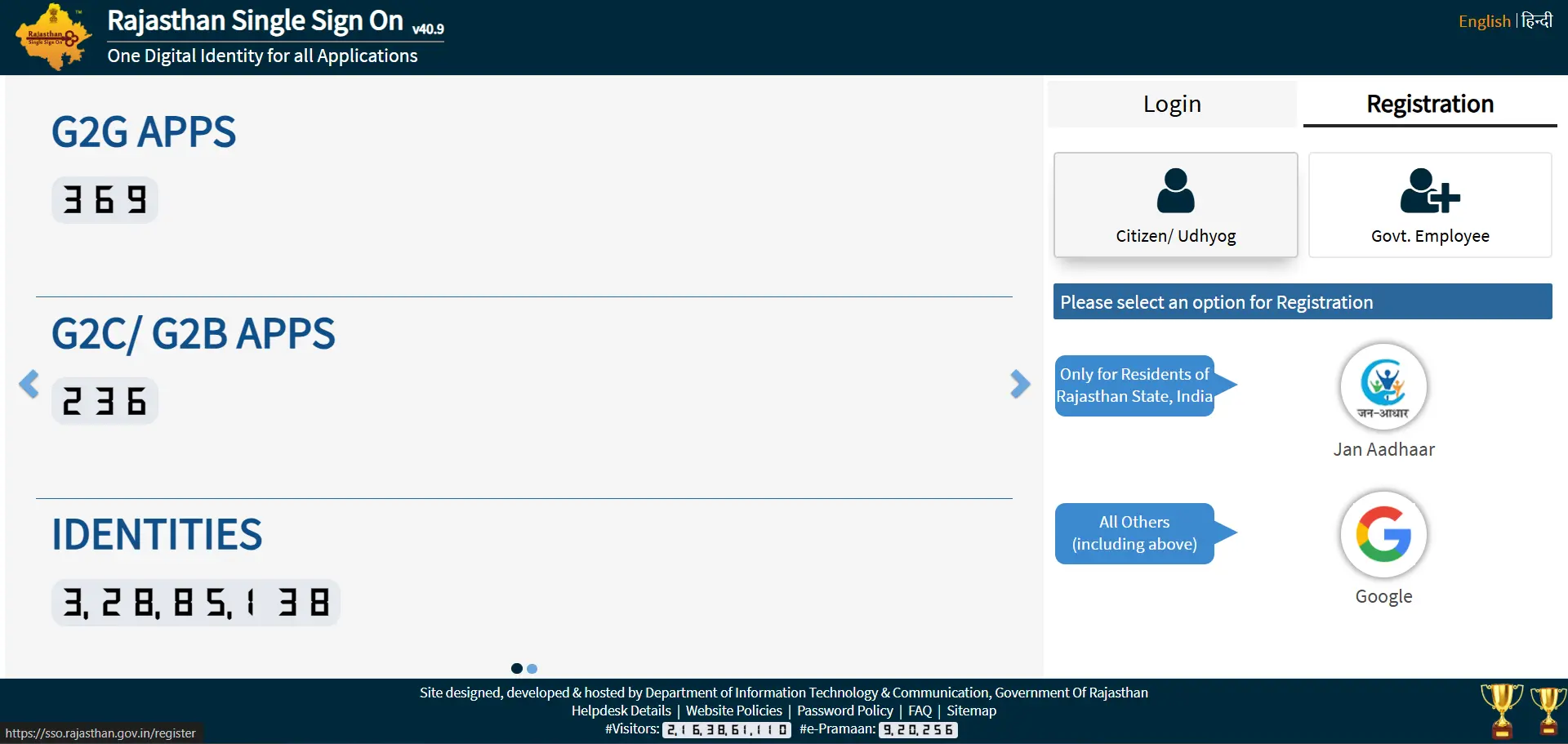
Step 3: Select Your Category
- Citizen: Choose this if you are a common public user. You can register using your Jan Aadhaar (for Rajasthan residents) or a Google Account (for non-residents).
- Udyog: Choose this if you are registering a business. You will need a Business Registration Number (BRN).
- Govt. Employee: Choose this if you are state staff. You will need your State Insurance and Provident Fund (SIPF) password.
Step 4: Verify and Create Password
Authenticate via OTP sent to your registered mobile number or email. Create a strong password (minimum 8 characters, alphanumeric with special symbols).
Step 5: Profile Update
Upon your first login, you will be prompted to complete your SSO profile. Enter your Date of Birth, Gender, Mobile Number, and link your Aadhaar card to unlock all services.
Forgot SSO ID or Password? Here is how to recover it:
Losing access to your SSO ID is common, especially during exam seasons. Do not create a new ID, as duplicate accounts can cause issues with your exam forms.
To Recover SSO ID (Username):
- Go to the SSO login page and click "Forgot my Digital Identity (SSOID)?"
- Select the method you used to register (Jan Aadhaar, Aadhaar, Google, or BRN).
- Enter the ID number associated with that method.
- An OTP will be sent to your registered mobile number.
- Upon verification, your SSO ID will be sent to your mobile via SMS.
- Alternative: Send an SMS stating `RJ SSO` to 9223166166 from your registered mobile number.
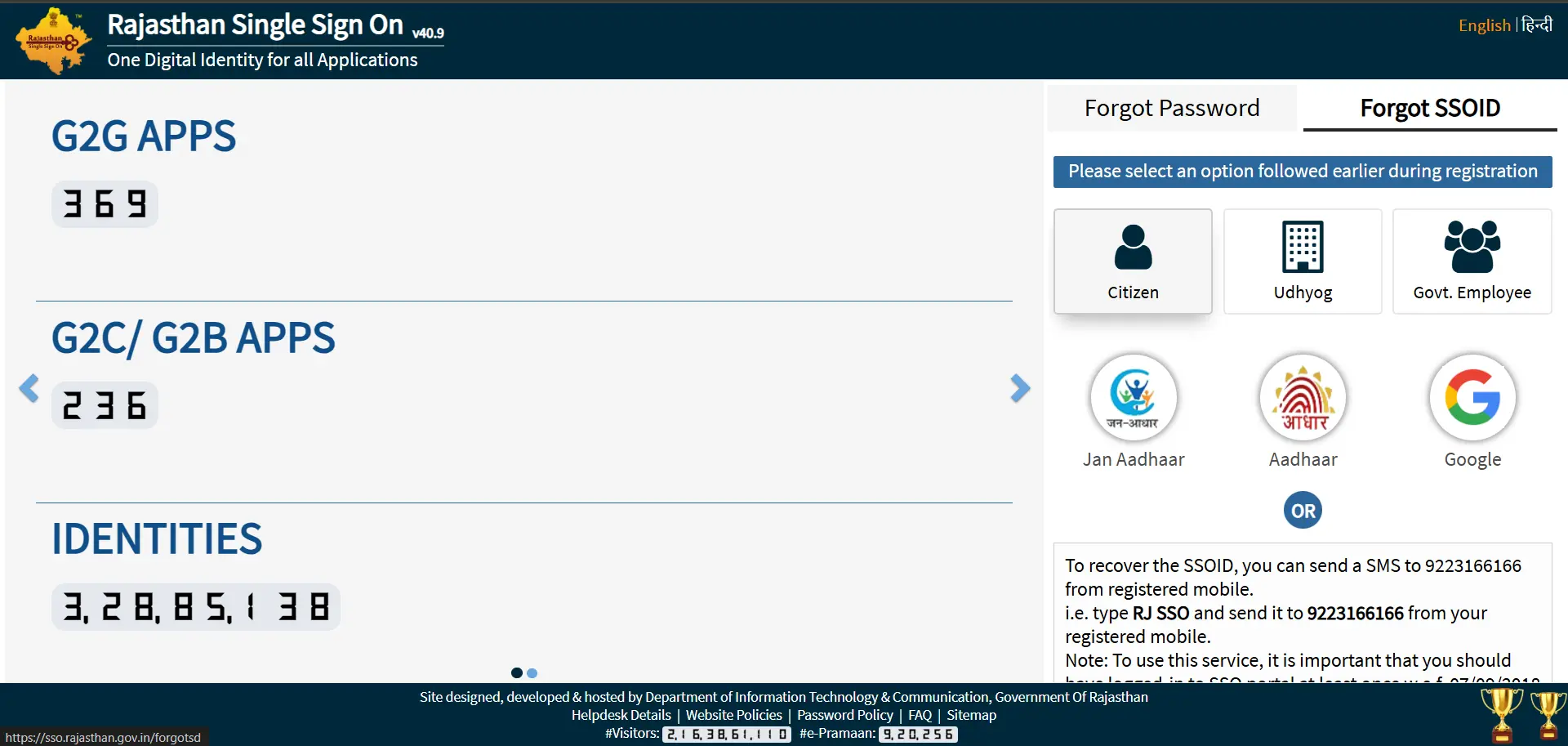
To Recover Password:
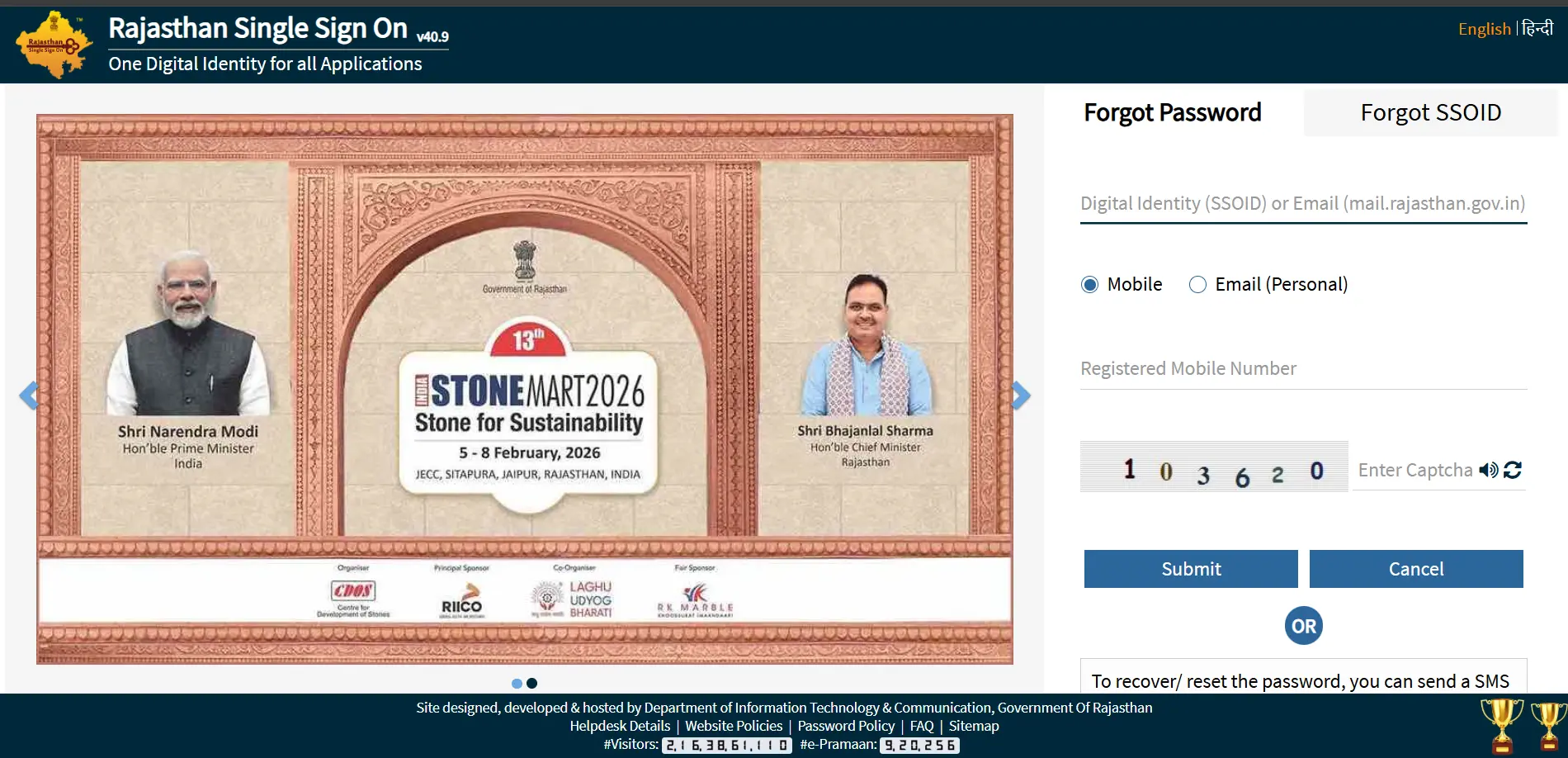
- Click "Forgot my Password?" on the login page.
- Enter your SSO ID and your registered Mobile Number or Email.
- Enter the Captcha code and submit.
- You will receive an OTP. Enter it to reset your password securely.
Merging Multiple SSO IDs
If you accidentally created multiple SSO IDs (e.g., one with Google and one with Jan Aadhaar) and are facing "Aadhaar already in use" errors on the Recruitment Portal, you must merge them.
- Log into the SSO ID you want to keep (your primary ID).
- Click on the Edit Profile icon (the pencil next to your name).
- Scroll down to find the Deactivate Account or Merge option.
- You will need to provide the secondary SSO ID and authorize the merge via Aadhaar OTP.
- Once merged, all data from the deactivated account transfers to the active one.
Common Technical & Access Issues
| Issue | Quick Solution |
|---|---|
| Invalid Captcha Error | The session may have timed out. Refresh the page (F5), clear the captcha field, and type the new code immediately. |
| Jan Aadhaar Data Mismatch | If SSO shows an old photo or incorrect name, you must update your Jan Aadhaar card first through an E-Mitra kiosk. The SSO profile fetches data directly from the Jan Aadhaar server. |
| Recruitment Portal "Payment Pending" | If money is deducted but the exam form isn't submitted, wait 24-48 hours. Use the "Verify Application Payment" button on the Recruitment Dashboard. Do not pay twice immediately. |
| Account Shows "Deactivated | Accounts left inactive for very long periods may be suspended for security purposes. First, try the "Forgot Password" flow to see if a password reset restores the account state. If that fails, you must email the official SSO Helpdesk with a copy of your Aadhaar card to request manual reactivation. |
| "Aadhaar Already in Use" Error | This means you have accidentally created multiple SSO IDs (for example, one via Google and one via Jan Aadhaar). You must merge them. Log into the account you wish to keep, click the Edit Profile icon (the pencil next to your name), select the Deactivate Account / Merge option, and provide your secondary SSO ID. Authorize the merge via Aadhaar OTP to consolidate your data. |
Official Helpdesk & Contact
If you face persistent issues regarding account blocking or unmerging, contact the RajSSO technical team:
| Department | Contact Details |
|---|---|
| SSO Helpline Number | 0141-2925554 / 0141-2925555 |
| SSO Support Email | helpdesk.sso@rajasthan.gov.in |
| E-Mitra Support | helpdesk.emitra@rajasthan.gov.in / 181 (CM Helpline) |
Advanced SSO Management & Tips
Navigating the vast ecosystem of Rajasthan Government services requires more than just knowing how to log in. It requires an understanding of how data flows between different departments through the RajSSO portal. For heavy users, government employees, and job applicants, mastering these advanced portal mechanics can save time, money, and prevent application rejections.
1. Mastering One-Time Registration (OTR) for Exams
The Rajasthan Public Service Commission (RPSC) and the Rajasthan Staff Selection Board (RSMSSB) now strictly mandate One-Time Registration (OTR) via the SSO Recruitment Portal. The OTR system was designed to eliminate the need for candidates to repeatedly type out their demographic details for every single exam. Instead, the portal fetches and permanently locks your fundamental identity data (Name, Father's Name, Gender, and Date of Birth) directly from your chosen identity document, primarily your Jan Aadhaar or Aadhaar card.
Important: The "10th Marksheet" Rule
Before you even click "Generate OTR Profile," you must physically cross-check your Jan Aadhaar or Aadhaar profile against your 10th-grade (Matriculation) mark sheet. The spelling of your name, your father's name, and your exact Date of Birth must match perfectly. If there is a mismatch, you must update your Jan Aadhaar at an E-Mitra kiosk first. Modifying OTR details after they are generated is extremely difficult, heavily restricted, and requires paying official correction fees.
2. Ironclad Security Best Practices
Your SSO ID is the master key to your digital identity in Rajasthan, linking everything from your exam applications to your health insurance (Chiranjeevi Yojana). Treating this account with the highest security protocols is non-negotiable.
- Defend Against Public Kiosks: If you must use a cyber cafe or a public library computer to fill out an exam form, always use "Incognito" or "Private Browsing" mode. Never allow the browser to "Save Password." When finished, manually click "Logout" and completely close the browser application to prevent session hijacking.
- Enable Biometric Authentication: If you frequently use E-Mitra services from your home or office, you can enhance your security by enabling Aadhaar Biometric authentication for your SSO ID within your profile settings. This adds a physical layer of security beyond just a password.
- Maintain Active Contact Channels: Your registered mobile number and email address are your only lifelines if you are locked out of your account. If you lose your SIM card or change your primary phone number, update it immediately via the SSO Edit Profile dashboard. OTPs are critical not just for password recovery, but for verifying final exam form submissions and receiving admit card alerts.
3. Handling Payment Failures on the Recruitment Portal
During peak exam season, server traffic can cause transaction delays. If your money is deducted from your bank account but your exam form still shows as unsubmitted, do not panic.
- Do Not Pay Twice: Wait for at least 24 to 48 hours for the bank to reconcile the transaction with the SSO servers.
- Use the Verify Button: Navigate to your Recruitment Dashboard and click the "Verify Application Payment" button to manually refresh your transaction status.
4. The Jan Aadhaar Auto-Fetch Mechanism
For residents of Rajasthan, linking your SSO ID with your Jan Aadhaar card is highly recommended, and often mandatory for claiming state benefits.
Jan Aadhaar acts as a unified family database. When you apply for a scholarship through the SJE portal or a pension, the SSO system automatically fetches your caste, income, and bank details directly from your Jan Aadhaar profile. If your SSO dashboard shows an old photo or incorrect name, you cannot change it in SSO; you must update your Jan Aadhaar card first through an E-Mitra kiosk.
5. Registering as a Government Employee or Business
The SSO portal categorizes users to provide specific services. Ensure you register under the correct tab:
- Govt. Employees (RajKaj): State government employees should not register as "Citizens." They must register using their State Insurance and Provident Fund (SIPF) Number. This specialized ID grants access to the RajKaj application to manage leave, Annual Performance Appraisal Reports (APAR), and view salary slips via Paymanager.
- Businesses (Udyog): If you are registering a business or enterprise, use the "Udyog" tab. You will need a valid Business Registration Number (BRN) to complete this setup.
6. Offline SSO ID Recovery (SMS Hack)
If you cannot access the internet or the portal is down, there is an alternative offline method to recover a forgotten SSO ID (Username).
Simply send an SMS stating RJ SSO to 9223166166 directly from the mobile number you used during your initial registration. Your digital identity will be sent back to you via text message.
Frequently Asked Questions (FAQs)
Q: Is it mandatory to have a Jan Aadhaar to create an SSO ID?
A: For citizens of Rajasthan, it is highly recommended to use Jan Aadhaar as it automatically verifies your identity. However, candidates from outside Rajasthan applying for state exams can register using their Google account or Aadhaar.
Q: Can I change my SSO ID username later?
A: No. Once created, the SSO ID (username) cannot be changed. You can only update your profile details, password, mobile number, and email.
Q: My account shows "Deactivated". What should I do?
A: Accounts inactive for very long periods may be suspended for security. You must email the SSO Helpdesk with a copy of your Aadhaar card requesting reactivation, or try the 'Forgot Password' flow to reset the account state.